Posts

Showing posts with the label Computer and Software help

Building Your Budget Gaming PC for Under $900

Image
Level Up Your Gaming Without Breaking the Bank Welcome PC Builder!  So, you've decided to ditch pre-builts and dive into the satisfying world of custom PC building? Smart move! Not only can you save a good chunk of change, but you also get a deeper understanding of your machine and the exact performance you want.  We're aiming for a solid gaming rig around the  under-$900  mark that delivers excellent performance for today's games. What You'll Need (The Essentials): Physical Tools: Phillips #2 Screwdriver (magnetic tip is a lifesaver for tiny screws!) Anti-static wrist strap (safety first, prevents component damage) Zip ties or Velcro cable ties & a small pair of snippers (for neat cabling) Thermal paste (if your CPU cooler doesn't have it pre-applied) Small bowl or tray for screws (don't lose those t...

10 Things You Can Do with A.I. That You Probably Never Thought Of

Image
Artificial Intelligence isn’t just for tech giants or sci-fi movies. It’s becoming an everyday tool that, when used creatively, can enhance your life, hobbies, and productivity in surprising ways. Here are ten unexpected but impactful things you can do with A.I. right now. 1. Visualize Fictional Worlds While You Read Reading a fantasy or sci-fi book? Use AI image generators to bring scenes, characters, and cities to life as you go. Great for visual learners or anyone who loves immersive reading. 2. Turn Handwritten Notes into Digital Text Have old journals, scribbled ideas, or class notes? AI-powered OCR (Optical Character Recognition) tools can convert messy handwriting into clean, searchable text files, perfect for organizing thoughts or archiving personal history. 3. Restore and Upscale Vintage Photos and Art AI tools can enhance low-res, faded artworks—including paintings, comic panels, and posters—by sharpening details and restoring colors without losing the original charm. Per...

​Avast to Pay $16.5 Million in FTC Settlement Over Privacy Violations

The Federal Trade Commission (FTC)  has announced a  $16.5 million settlement  with antivirus software provider Avast. The settlement addresses allegations that Avast misled consumers by collecting and selling their sensitive browsing data through its subsidiary, Jumpshot. What Happened? Avast, while marketing itself as a privacy-focused antivirus provider, reportedly collected users' detailed browsing information and sold it to over 100 third parties. The data included details related to: Health and medical searches Location history Financial and political information Online activity and behavior This behavior allegedly occurred between August 2014 and January 2020 . Who Is Eligible? Roughly 3.7 million consumers who purchased Avast antivirus products during that time period may be eligible for a refund. The FTC began sending email notifications with claim information between February 24 and March 7...

Choosing the Right Programming Language: A Guide

Image
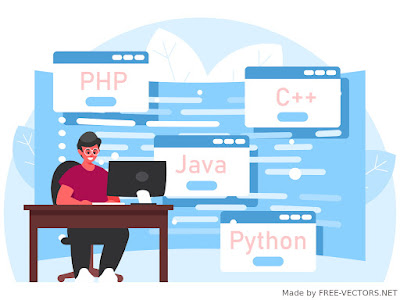
When it comes to learning a programming language, it can be difficult to decide which one to start with. There are countless options available, each with its own strengths and weaknesses. To help you make a decision, we've compiled a list of 10 popular programming languages and a brief overview of what they're commonly used for.

Can I rename my Windows Audio Device?

Can you rename your Windows audio device to switch devices easier? Yes, you can rename your audio devices in Windows 10 and 11. Here's how (in Windows 11): Open the Start menu and type "Control Panel" into the search bar. Click on the "Control Panel" icon to open it. In the Control Panel, click on the "Hardware and Sound" option. In the Hardware and Sound window, click on the "Sound" option. This will open the Sound window. In the Sound window, click on the "Playback" tab. This will show a list of all the audio devices that are currently connected to your computer. Right-click on the audio device that you want to rename and select "Properties" from the context menu. In the Properties window, click on the "General" tab. In the General tab, you will see a field labeled "Device name." You can edit this field to give your audio device a new name. Click on the "Apply" button to save your changes. H...

How to Stream or Record from PS5 or Xbox Series X

Image
Image: Elgato HD60 S+ Streaming or Recording from a PlayStation 5 (PS5) or Xbox Series X console can be a useful way to share your gameplay with friends or create content for online platforms. Here is a step-by-step guide on how to do it: Make Clips / Snapshots

How to Take a Screenshot on Any Device

Screenshots are a useful tool for capturing and sharing images of your computer or phone screen. Whether you're trying to show someone a specific error message, demonstrate a feature of a software program, or just save a copy of something for your own reference, being able to take a screenshot is a useful skill to have. Here's how to take a screenshot on a mobile device and on a Windows or Mac computer.

How to Dark Mode Everything - Save your Battery, Eyes, and Screens

Image
After I switched to dark mode on almost every app and gadget I never went back. My devices last longer on battery and my eyes get less sore. It just took a few days to get used to. Started with dark mode in Windows settings, which makes apps borders and menus darker. In Windows 11 it can be found under Settings - Personalization - Colors A dark mode button on websites is becoming more common and I use it whenever I see it. Twitter, Facebook, YouTube, and many other apps have dark mode in the settings.  I installed an extension for Chrome that can 'Dark Mode' websites that don't have the button. It works well on most sites by changing the CSS background to black and text to white, either on-demand or automatically with a click.

Favorite Browser Extensions for Chromium Browsers

Image
Tip: After installing an extension, right click it and select "This app can access data -> when you click the extension". When it makes sense. That way the ext. is not always reading data you are browsing. Do you use the Brave Browser yet? Word Discoverer Highlights the more uncommon English words, has been useful to me as an ESL , and always learning new words in general. Read Aloud An A.I that can read out articles aloud. SwiftRead Helps you speed read, basically. Can be useful sometimes. Google Translate Is a must-have sometimes. MetaMask A must have for anyone interested in Cryptocurrencies. LastPass Password Manager Having a password manager is a necessity in my opinion. I don't use the built-in browser one. Honey - Shopping helper Makes sure you get the best deals (and possible coupons) when shopping online. Grammarly When you're writing articles and you wonder about your grammar. These extensions can speed up your productivity manifold! Whats you'r favo...

How to Save Website Articles for Offline Reading

Image
A Quick and Easy way to save a website article to read offline later. Don't use "Save as HTML" Use the Print button in your browser (shortcut Ctrl P) . And select Save as PDF in the printer selection dialogue. Then Click the Save button at the bottom of the dialogue.

Best Free Programs for New Windows Computers

What are some of the necessary apps and things to get for a Windows Computer? A secure internet browser. One of the first things I download is always the Brave Browser. A Chromium based browser with advanced security features. Download from Brave.com Antivirus Program After installing your updates, Windows will recommend to install antivirus program in addition to the built in Windows Defender Program. A popular one is McAffee Antivirus, but it is not free. Malwarebytes is a good free alternative. I have it set up to remind me to scan manually once per week. Since I use Brave Browser I don't need the extra features such as browser protection, so I skip this during install. I just stick to the free virus scan (after the 2 weeks of premium runs out) and hope for the best. Computer Maintenance CCleaner is a useful little tool I've always enjoyed. Helps you with cleaning 'crap', duplicate files, and leftovers from programs you no longer use. Office Tools ...

Building a Gaming Computer for $800

Image
By building our own gaming rig we can definitely save some money compared to buying a pre-built one from the stores. The parts needed are listed below, and we've made sure they all work well together to play the latest games. Also great for video editing, game streaming, game design, graphic design, and video/sound editing.

How To Record Footage From Ps4 or Xbox One

Image
Looking for How to Record/Stream from PS5 or Xbox Series X instead? Click here Do you want to learn How To Live Stream, or maybe just record some footage on ps4 or Xbox One? Well then you've come to the right place. You will need: A Capture Device like Cloner Box Pro A Computer for streaming and editing - or a USB based storage system. A Video Game Device and the right cables And for those coming from the old article, there's now finally something better than the HD PVR2 Recorder by Hauppauge!

Build a Gaming PC for Under $600

Image
Building your own gaming rig can definitely save you some money compared to buying a pre-built one. The parts you'll need are listed below, and we've made sure they all work well together to play the latest games in 2018. Also works great for game design, graphic design, and video/sound editing. Once you're ready to put it all together go to page two for the tutorial on the actual building of the computer. The Computer Case Cooler Master HAF - $62 The Computer Tower itself will house all the hardware. Cooler Master HAF is a nicely organized tower, and great for doing exactly what the name implies, keeping the hardware cool (and looks cool at the same time).

How to Make a Video Game

Image
Coming up with an idea for a video game has always been easy enough, but up until now its not been so easy to execute the plan. Old video game creation required lots of coding, but with some of the software below you can create a lot with none, or just simple programming. You'll need to make all the assets , and put it all together in a bug free environment using the right IDE Creating Models, Textures, Buildings, Other Assets

Chrome Browser Tips: "Read Later", Bookmarklets, Sharing

Image
Some more tips for Google Chrome. Using bookmarklets to share a page to social media (pinterest,twitter,etc.) saves you the pain of having to install an app. "How to use bookmarklets" Bookmarking things in a "read later" folder: When I'm on a Website I'd like to Read Later I Bookmark it into a folder  Easy in Chrome  – Two ways to Fave a Page: Click the Star in the Address Bar — Select a folder. Or just drag the Secure Site Icon straight to your Desktop, into a Folder, or to your Bookmarks Bar — it makes a shortcut to the page you are reading. https secure site icon The only problem is my Read Later folder was filling up faster than I could possibly read (even with a speed-reader).

Learn Something New Every Day - Newsletter

Household Tips, DIY, and More. Get the daily feed via email. Enter your email address : Want even more?  Get your Custom Digital Magazine - TubeBlogger Weekly   The latest stories - only the topics you want.

Reading the Star Database - And Designing a Space Game

Image
All the cataloged stars in our galaxy are available in a csv spreadsheet: http://www.astronexus.com/hyg Reading the Star Database: StarID: The database primary key from a larger "master database" of stars. HD: The star's ID in the Henry Draper catalog, if known. HR: The star's ID in the Harvard Revised catalog, which is the same as its number in the Yale Bright Star Catalog. Gliese: The star's ID in the third edition of the Gliese Catalog of Nearby Stars. BayerFlamsteed: The Bayer / Flamsteed designation, from the Fifth Edition of the Yale Bright Star Catalog. This is a combination of the two designations. The Flamsteed number, if present, is given first; then a three-letter abbreviation for the   Bayer Greek letter; the Bayer superscript number, if present; and finally, the three-letter constellation abbreviation. Thus Alpha Andromedae has the field value "21Alp And", and Kappa1 Sculptoris (no Flamsteed number) has "Kap1Scl". Prop...

Seven hidden gems in Mac OSX

OS X has all kinds of great little features, but so many of them  don't make the back of the box . Whether you've been an OS X user for a long time or you're new to the operating system, here are a few of the best built-in tools you might not know about (or you've just forgotten). Read on Lifehacker -  Seven unsung built-int gems in Mac OSX Digitally Sign Documents with Preview Invoke Dictionary with a Keystroke Find Menu Bar Options Quickly with Help Add Handwriting Recognition with Ink

How to hide secret messages in tweets

Image
Steganography is the ancient practice of stashing secret text, images, or messages inside a different text, image, or message. It dates back to as early as the fifth century BC, when Spartan King Demaratus removed the wax from a writing tablet and wrote a message hidden on the wood underneath  warning of an imminent invasion by Xerxes . Users need only type the text they want others to see in one field and the hidden message in a separate field. The service, created by New Zealand-based developer Matthew Holloway, then spits out a tweetable message that fuses the two together in a way that's not noticeable to the human eye. Read the article at 'Artstechnica '